

How To Use Color Snap For iPhone/Android
Step By Step
Father & Sons House Painting
What is the ColorSnap Visualizer Tool?
If you’ve ever painted your home, then you know how difficult it can be to select paint colors. If you’re struggling to find your paint colors or you’re just having trouble visualizing how your space will look once painted, then we’ve got an amazing tool for you! Sherwin Williams created the ColorSnap Visualizer tool to help homeowners find their perfect colors and get a sense for how they will transform the space. So, today we’ll be walking you through step-by-step on how to use the Visualizer tool to help select your next paint colors.
Access the Tool:
Click Here To Start.
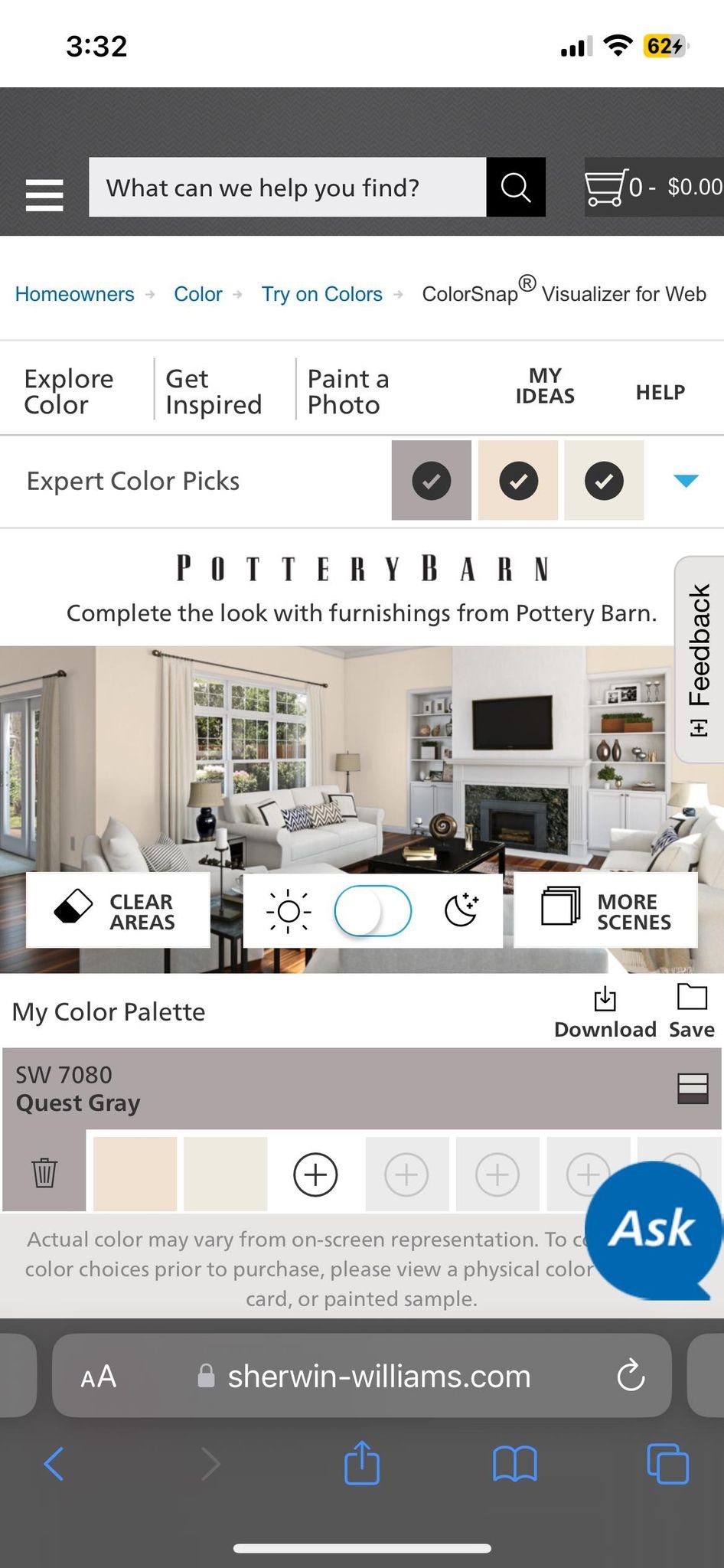
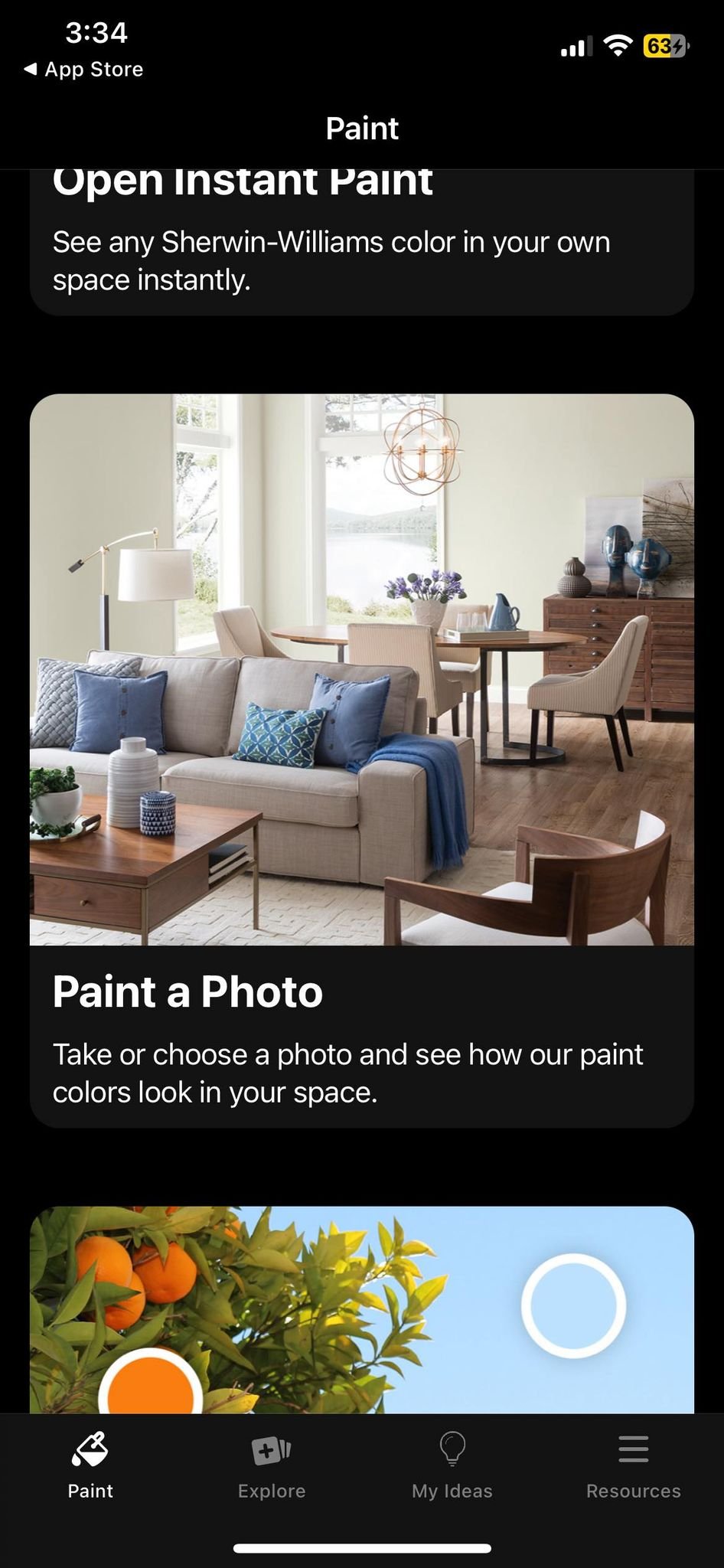
Click Paint a Photo.
From here you can use one of Sherwin Williams’ preset templates or upload a photo of your space.

*Download and Install*:
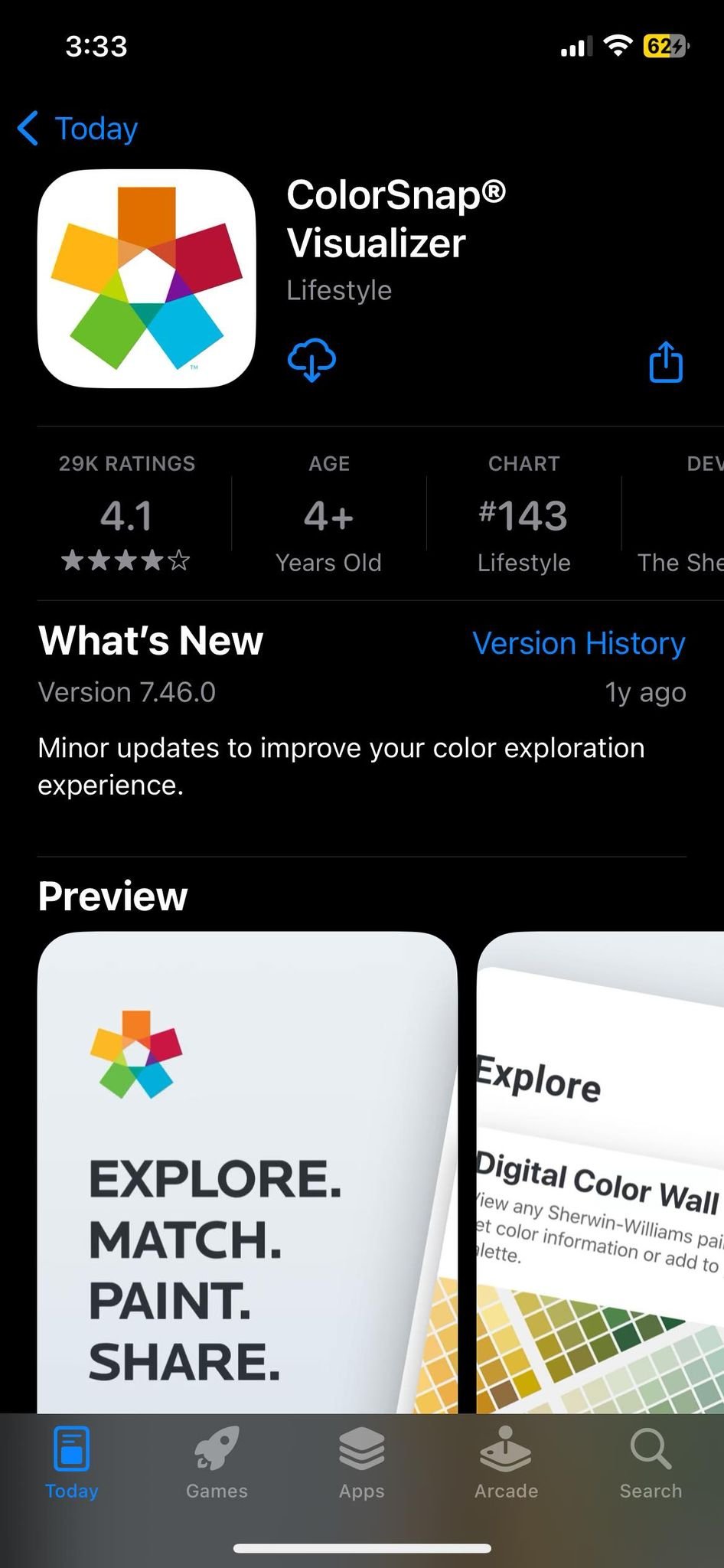
Go to the App Store on your iPhone and search for "Sherwin-Williams ColorSnap." OR Click On “GET THE APP” Download and install the app on your device.
Open the App*:
Tap on the ColorSnap icon on your home screen to open the app.


Log in Or skip
*Additional Features*:
Explore other features of the app, such as color matching.
*Additional Features*:
Explore other features of the app, such as color collections, and color education resources.


*Live Camera | Photo Library*:
Tap on the camera icon to use your device's camera to capture colors around you in real-time. Alternatively, you can choose a photo from your device's library to explore colors within that image
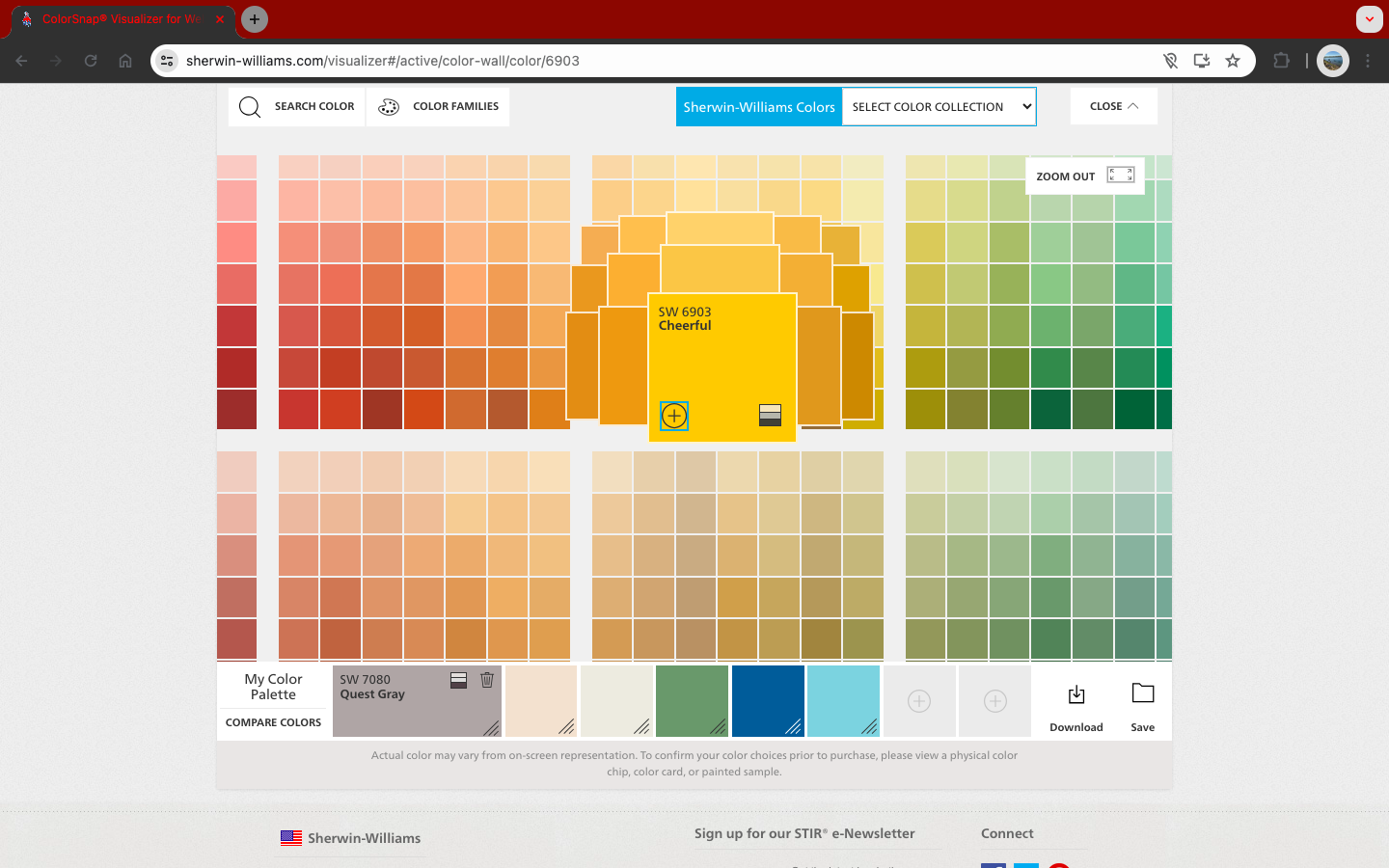
To add colors click the + Add a Color in the My Color Palette. You can select from the large palette of colors or use the search bar to find a specific color. Once you find the color you’d like to look at click the + in the bottom left corner of the color square as shown here.
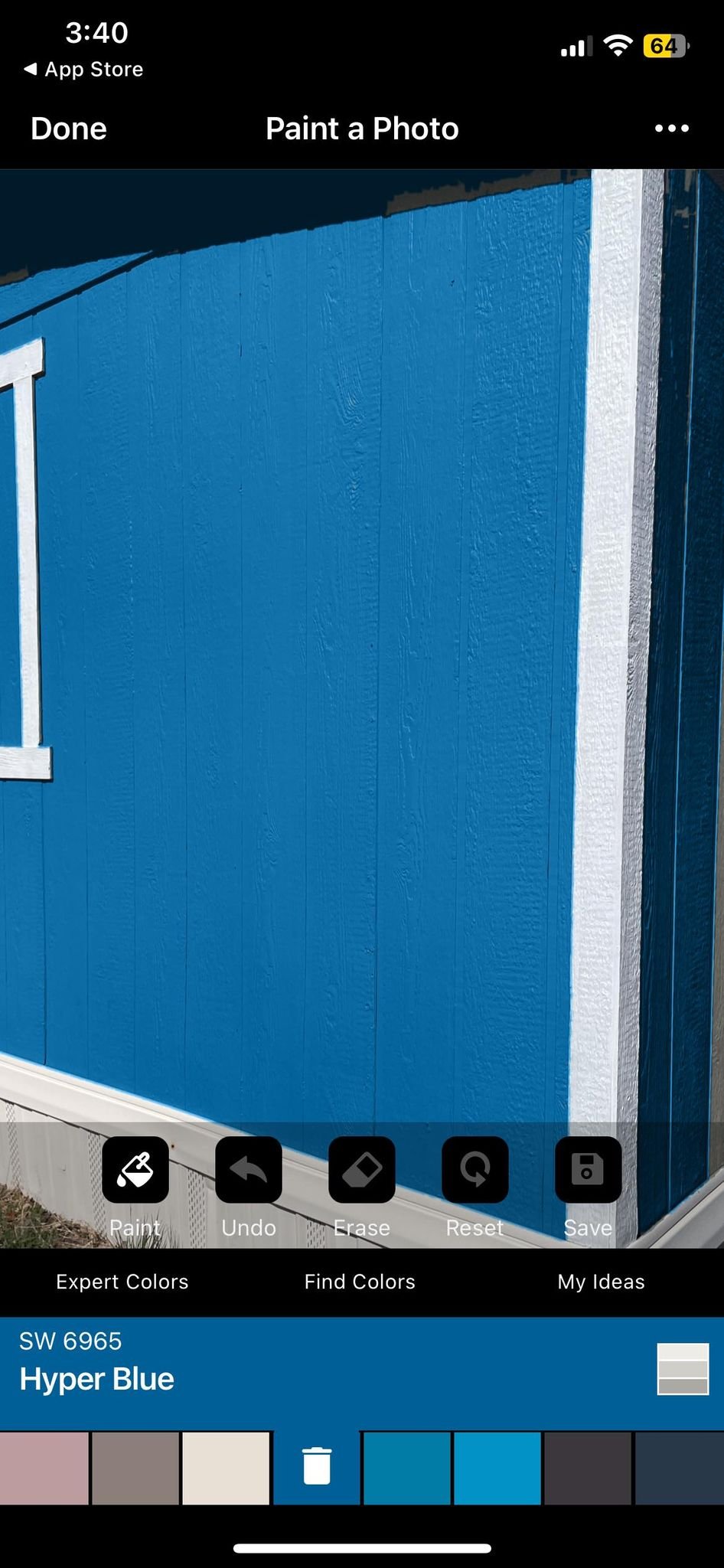
To color in an area, select the color you’d like to see from your color palette and click the area you want to color in; body, trim, or accent. This should fill in that space accordingly.
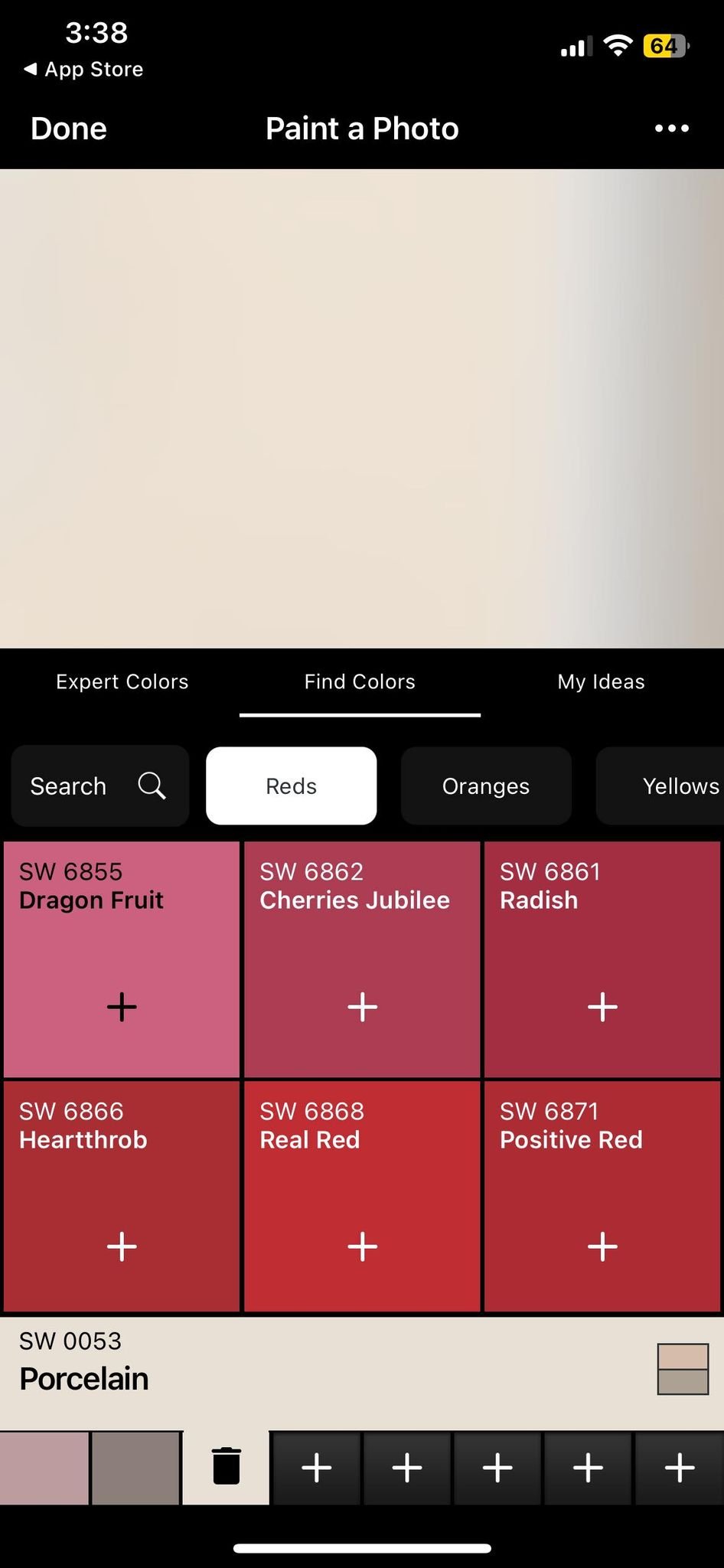
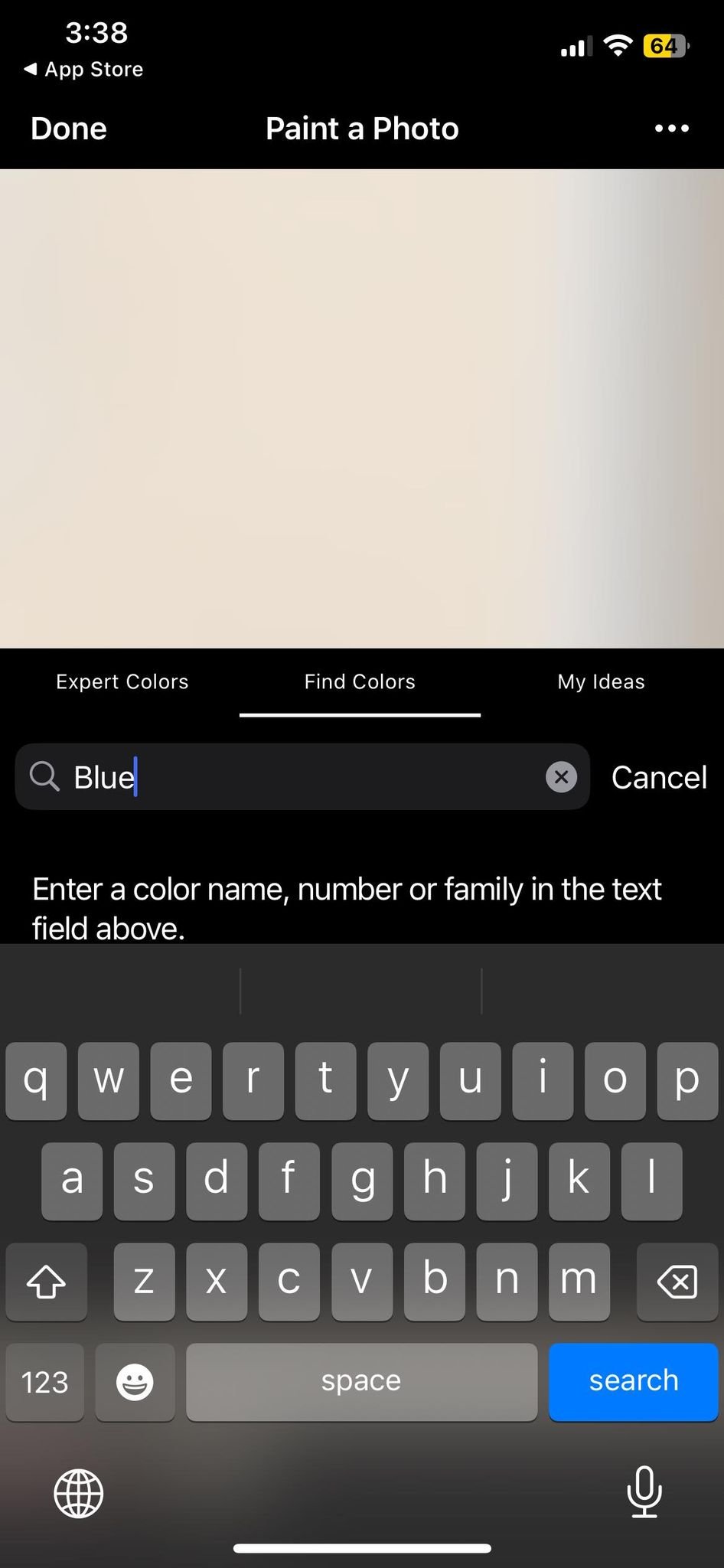
*Explore Colors*:
Once the app is open, you can explore colors in various ways:
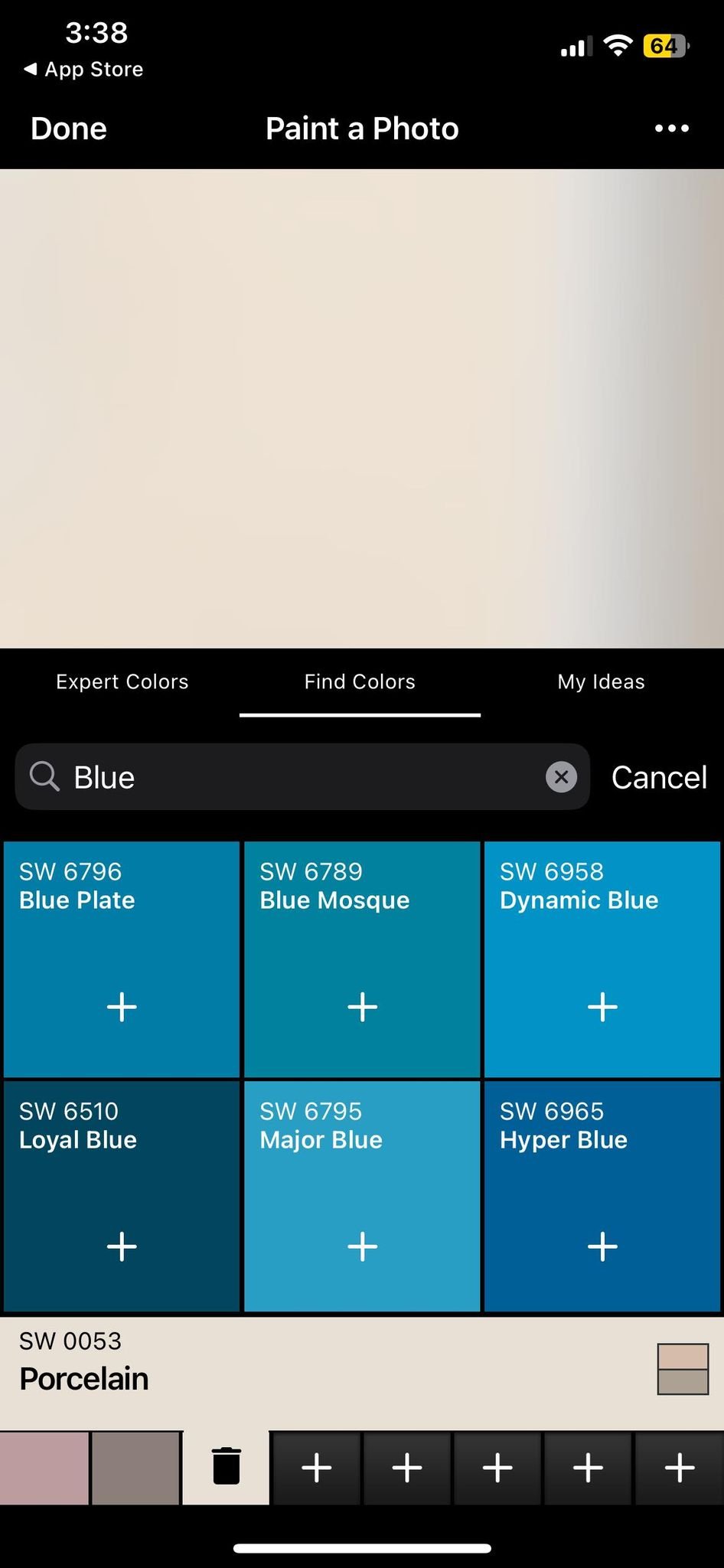
*Color Values*: If you have specific color values in mind, you can enter them manually to find matching colors.
*Select a Color*: Once you've found a color you like, tap on it to select it. This will bring up additional options and information about the color.
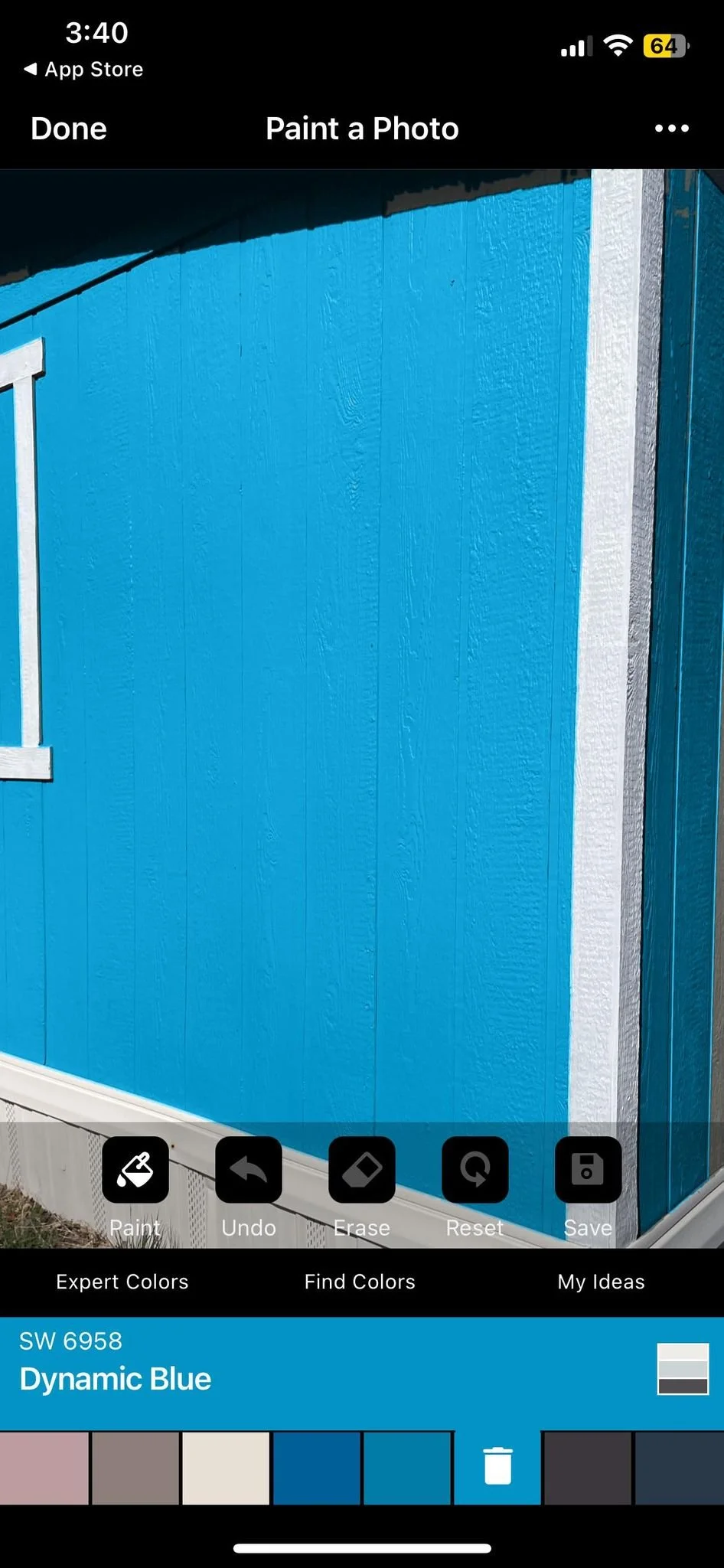
*Visualize Colors*: Use the app's visualization tools to see how the selected colors would look in different settings:
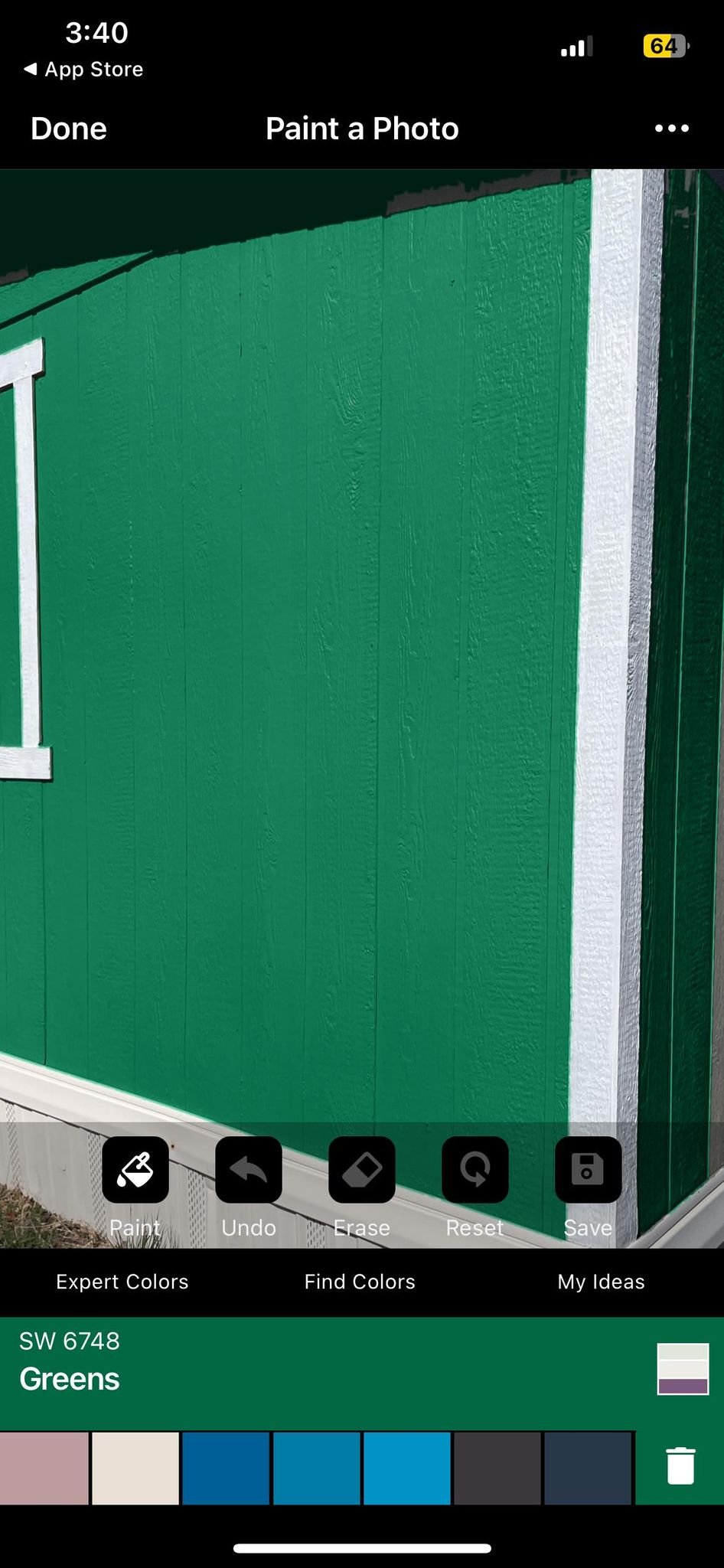
*Create Color Palettes*: To create a color palette, tap on the palette icon. You can add the selected color to an existing palette or create a new one.

As you go through and check out colors you may decide certain colors aren’t going to work. To remove unwanted colors from your color palette simple click the small trash can icon next to the color name.
You can add up to eight colors in a single color palette. Once you have your colors selected click Close in the top right corner. This will take you back to your image.
